| Version 13 (modified by , 6 months ago) ( diff ) |
|---|
Site Navigation
- COSMOS Testbed Overview
- Getting Started
- COSMOS/ORBIT User Guide
- COSMOS Portal
- Account Management
- Portal Dashboard
- Directory
- Disk Images
- Community Forum
- Getting Started with the COSMOS Portal
- SSH Access to Testbed Nodes
- Scheduler
- Testbed Status
- Installing Chrome Remote Desktop (CRD) on a Custom Image
- Tutorials
- Architecture
- Resources, Services and APIs
- Datasets
- Hardware Info
- RF Policies & Compliance
Description
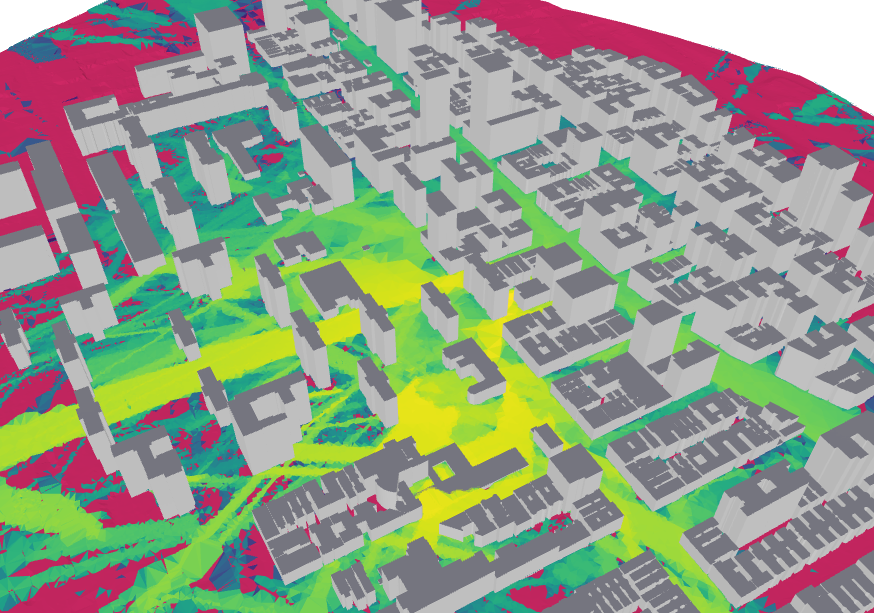
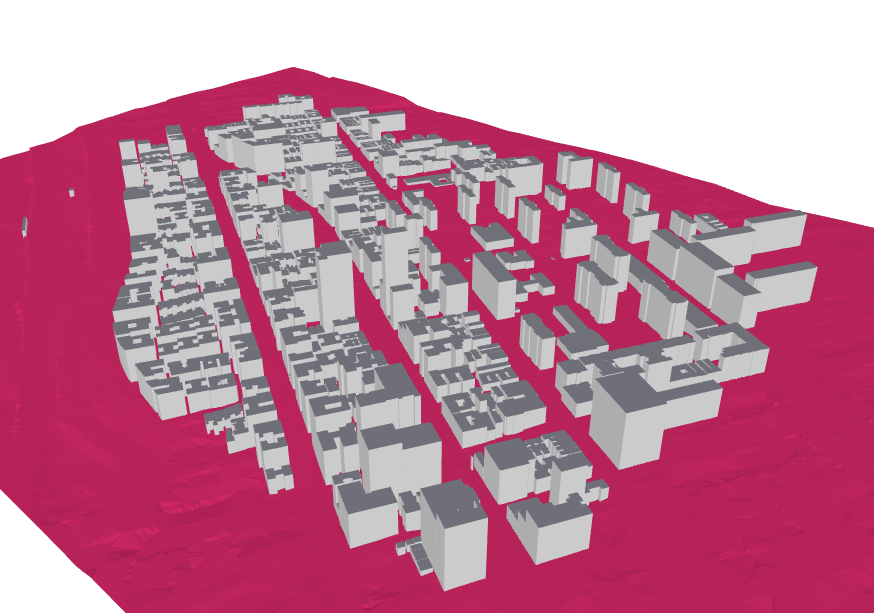
Geo2SigMap is an efficient framework for high-fidelity RF signal mapping leveraging geographic databases, ray tracing, and a novel cascaded U-Net model. The project offers an automated and scalable pipeline that efficiently generates 3D building and path gain (PG) maps. The repository is split into two distinct partitions:
- Scene Generation: A pure Python-based pipeline for generating 3D scenes for arbitrary areas of interest.
- ML-based Propagation Model: ML-based signal coverage prediction using our pre-trained model based on the cascaded U-Net architecture described in this paper.
As of November 2025, v2.0.0 enhances the scene generation pipeline to include:
- LiDAR Terrain Data
- Building Height Calibration using Digital Elevation Models (DEMs)
This drastically improves the accuracy of the environment being processed by the ML-based Propagation Model or a ray tracer of your choice. Throughout our Jupyter Notebook examples, we utilize Sionna RT. This package is open-source and popular for creating coverage predictions. If you are unfamiliar with Sionna RT, feel free to read Nvidia's Technical Report to better understand how it works. Tutorials for Sionna can be found here.
Prerequisites
To use Geo2SigMap with ease, we strongly suggest managing python packages using Anaconda. Anaconda's package manager, conda, offers everything you need with no extra configuration. It becomes extremely useful while running the notebook examples in the Demos section.
The installation process should ensure that all required packages are installed. In the event of any issue, this is the pipreqs list as of 1/21/2025:
osmnx >= 2.0.0
numpy
pyproj
shapely
rasterio
tqdm
pillow
open3d
Given the large overhead for ray tracing and ML tasks, access to a dedicated GPU (with RT cores) is also suggested. Using Sionna RT with a CPU offers limited performance and will restrict the capabilities for experimentation.
Package Installation
- Create the Conda Environment:
conda create --yes --name g2sm --channel conda-forge pdal python=3.12
conda activate g2sm
pip install pyvista==0.45.2
If you opt not to use conda, please note the additional installation of pyvista v0.45.2
- Clone and Install geo2sigmap:
git clone https://github.com/functions-lab/geo2sigmap
cd geo2sigmap/package
pip install .
The package is now installed and can be called via the CLI tool or using the Python function API.
Creating a Scene
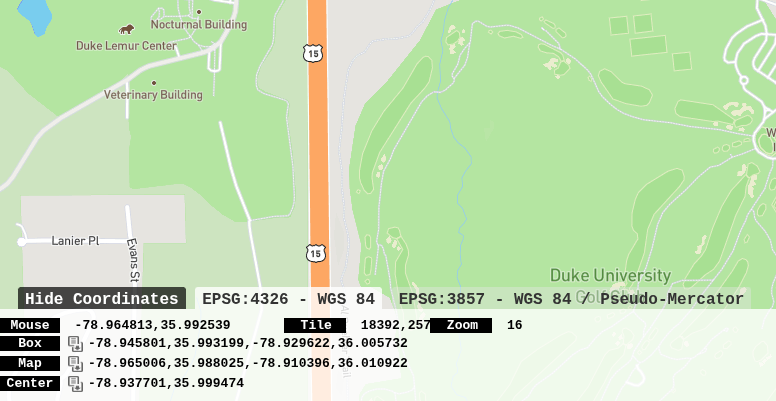
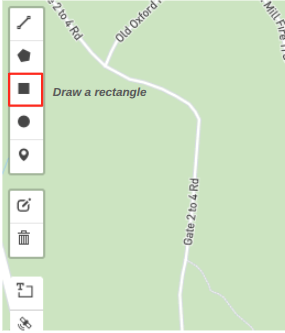
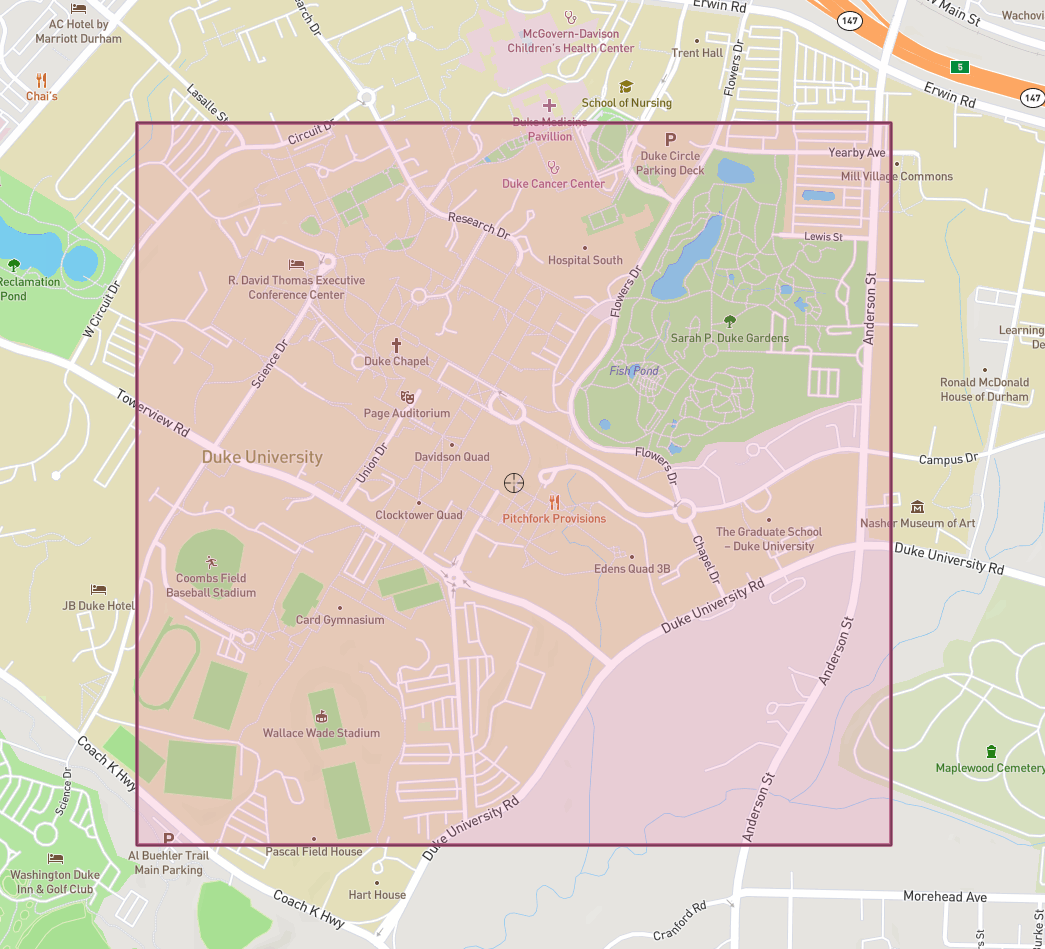
The easiest way to create a scene is using the CLI Tool. Scene boundaries are defined by parameterized GPS coordinates. To find these coordinates (either a singular corner or all four), bbox is a helpful service. You can zoom and scroll through the world map to find your target area. Once found, the box icon allows you to draw the rectangular area and save the coordinates.

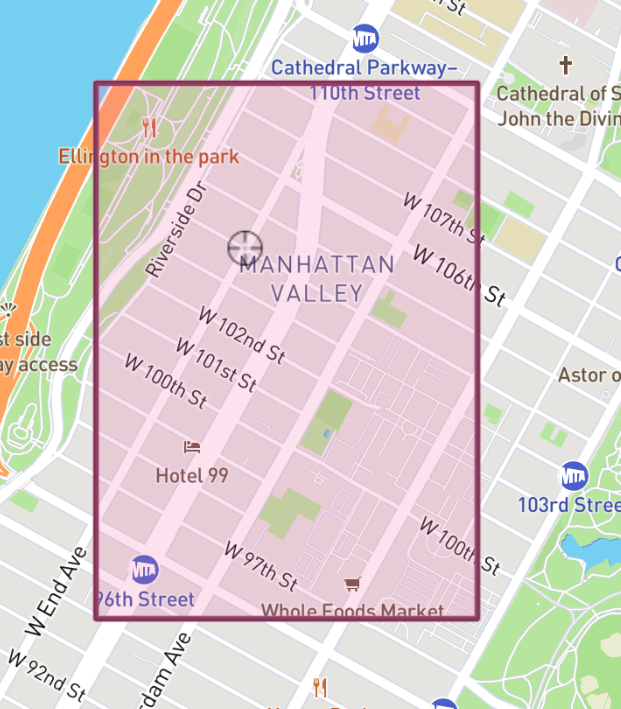
Here, I've generated a set of example coordinates that map a portion of the COSMOS testbed.

-73.973178 40.793488 -73.963824 40.803430
These values can now be used to generate the scene using the CLI tool.
Generating a Coverage Map with Sionna RT
This tutorial follows this README and this notebook. Feel free to reference either directly if you require custom modifications.
- In your working directory, use this command to generate the scene:
scenegen bbox -73.973178 40.793488 -73.963824 40.803430 --data-dir scenes/COSMOS
Cite
If you're able to use the tool as a part of your research, please use the following citation:
@inproceedings{li2024geo2sigmap,
title={Geo2SigMap: High-fidelity RF signal mapping using geographic databases}, author={Li, Yiming and Li, Zeyu and Gao, Zhihui and Chen, Tingjun}, booktitle={Proc. IEEE International Symposium on Dynamic Spectrum Access Networks (DySPAN)}, year={2024}
}
Attachments (6)
- coordinates.png (129.2 KB ) - added by 6 months ago.
- box_edit.png (25.0 KB ) - added by 6 months ago.
- map.png (561.2 KB ) - added by 6 months ago.
-
Screenshot from 2026-01-26 01-57-57.png
(425.8 KB
) - added by 6 months ago.
COSMOS
-
COSMOS_RM.png
(461.5 KB
) - added by 6 months ago.
RM
-
COSMOS_render.png
(241.6 KB
) - added by 6 months ago.
Map
Download all attachments as: .zip